
FOMEI LED DMX 300B Studio Light - PhotoRobot brugervejledning
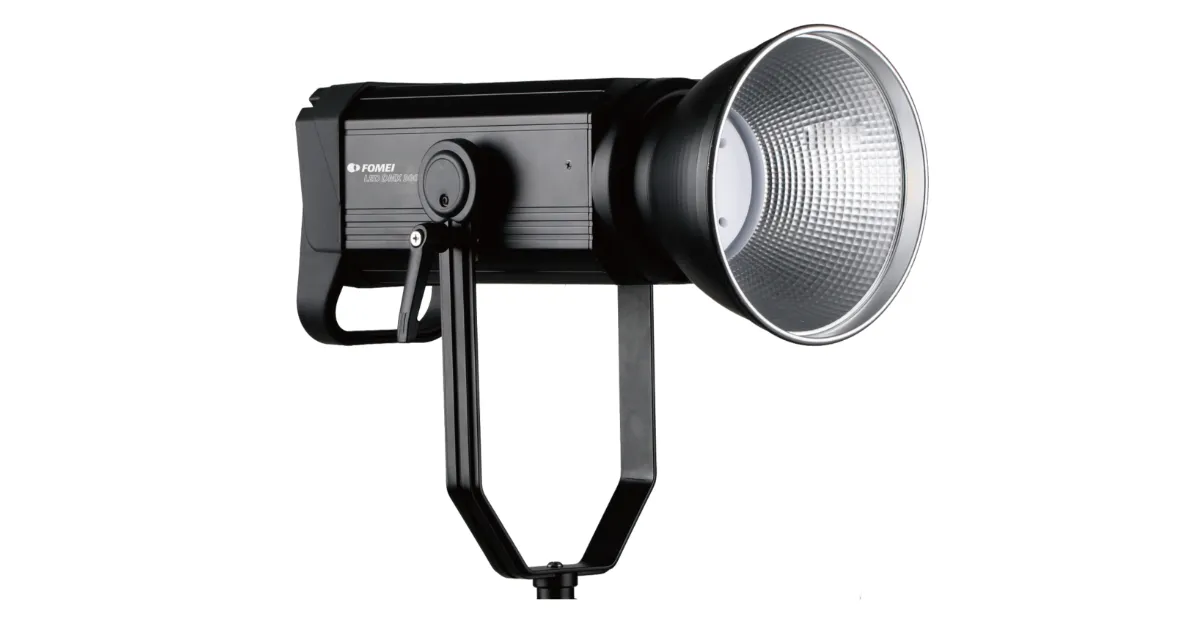
Denne brugermanual til PhotoRobot-kunder giver instruktioner til betjening af FOMEI LED DMX 300B studielampen. Oplysningerne har til formål at støtte PhotoRobot-kunder i brugen af FOMEI LED DMX 300B med deres PhotoRobot-system.
Bemærk: Denne brugermanual er en gengivelse af officiel dokumentation fra producenten for FOMEI LED DMX 300B. Se producentens hjemmeside fomei.com for den officielle dokumentation for dit specifikke produkt. Sørg også for at læse al dokumentation, der er specifikt til din enhed, før den bruges første gang.
Vigtigt: Før drift skal du sikre, at produktet er intakt, og at der ikke mangler dele. Åbn eller reparer ikke enheden selv. Hvis der er nogen fejl, bedes du kontakte FOMEI direkte. For garanti- og vedligeholdelsesinformation på FOMEI-produkter, henvis til dokumentationen, der er specifikt til din enhed.
Advarsler før brug
Bemærk følgende advarsler før brug:
- Sørg for, at produktet er intakt, og at der ikke mangler dele.
- I tilfælde af skade kontakt en professionel servicerepræsentant fra FOMEI.
- Når du bruger produktet, skal du sikre, at miljøet er tørt og ventileret.
- For optimal ydeevne bør du regelmæssigt rengøre produktet med en ren klud.
- Rids ikke eller tryk ikke på produktet.
Sikkerhedsadvarsler
Sørg for at følge sikkerhedsadvarslerne:
- Brug ikke din LED-enhed i et miljø, hvor fugt sandsynligvis vil komme i kontakt med enheden.
- Skil ikke produktet ad. I tilfælde af skade, kontakt en FOMEI-servicerepræsentant eller en kontraktlig service bestående af uddannede fagfolk.
- Hvis produktet skilles ad, vil det ikke være dækket af garantien.
- Brug ikke produktet ved ekstreme temperaturer (+50° C)
- Produktet er ikke egnet til børn.
- Sæt ikke apparatet i eller ud af stikket, mens strømmen stadig er tilsluttet.
- Belast ikke lyset mere end nødvendigt.
- Begræns ikke luftventilerne under brug.
- Bemærk, at der er brandfare, hvis brandfarlige materialer placeres tæt på, mens enheden er i brug.
- Undgå at placere kabler, hvor de kan være farlige.
- Hold dig uden for børns rækkevidde.
Genbrugs- og informationsetiketter
Dette produkt indeholder elektroniske dele. Bortskaff ikke produktet sammen med almindeligt affald, men tag det i stedet til et elektronisk genbrugsanlæg. Beskyt venligst vores planet.
Informationsetiketten med krydsboksen betyder, at inden for Den Europæiske Union gælder produktet:
- Skal indsamles separat i overensstemmelse med gældende regler for elektronisk affald ved udløbet.
- Dette gælder for enheden og for alt tilbehør mærket med dette symbol.
- Bortskaff ikke disse produkter som usorteret kommunalt affald.

PhotoRobot - FOMEI LED DMX 300B Brugervejledning
Indholdet af denne brugervejledning til FOMEI LED DMX 300B består af følgende afsnit, i rækkefølge.
- Om: FOMEI LED DMX 300B
- Kontroller
- Lysstyring
- Teknisk information
1. Om: FOMEI LED DMX 300B Studio Light
FOMEI LED DMX 300B er en professionel studielampe med en maksimal effekt på 300 W. Med sin høje effekt er lyset velegnet til studiebrug både i video og fotografi. Den får strøm direkte fra netforsyningen og understøtter DMX-protokollen. Dette muliggør brug af lyset selv i store produktioner. Lyset kan styres enten via den integrerede skærm og det intuitive scrollhjul eller blot via mobilappen.
Pakken til LED DMX 300 B består af 4 hoveddele.
- Lys
- Reflektor
- Strømkabel
- Transportsag
2. FOMEI LED DMX 300B Betjening
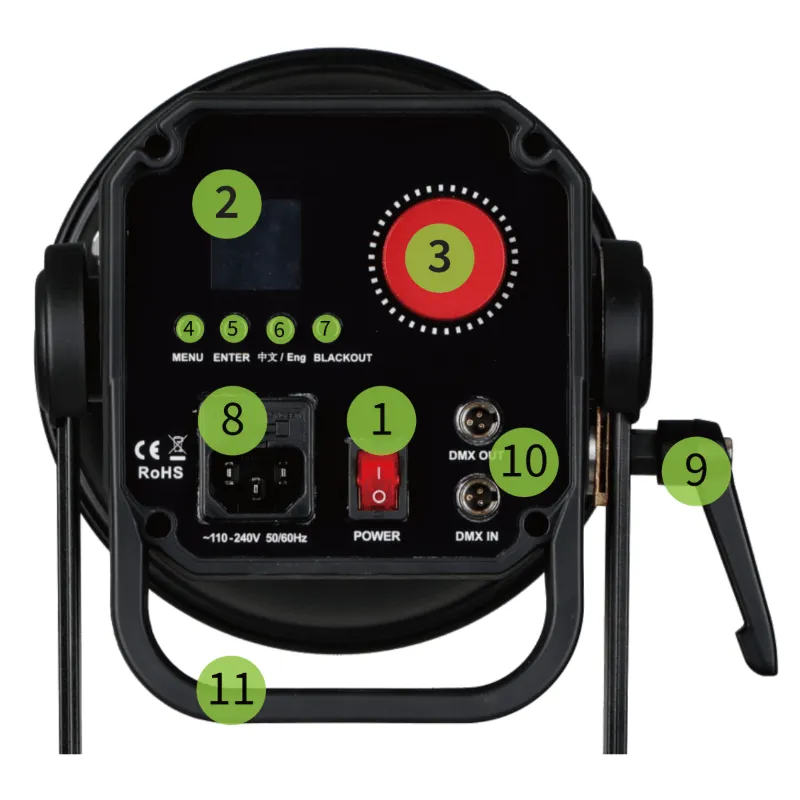
- TÆND/SLUK-kontakt
- Vise
- Kontrolrulle
- MENU-knap
- ENTER-knappen
- Skift sprogknap
- BLACKOUT-knap
- Stikkontakt
- Tilt Lock
- DMX Indgang og Udgang
- Håndtag
3. FOMEI LED DMX 300B Lyskontrol
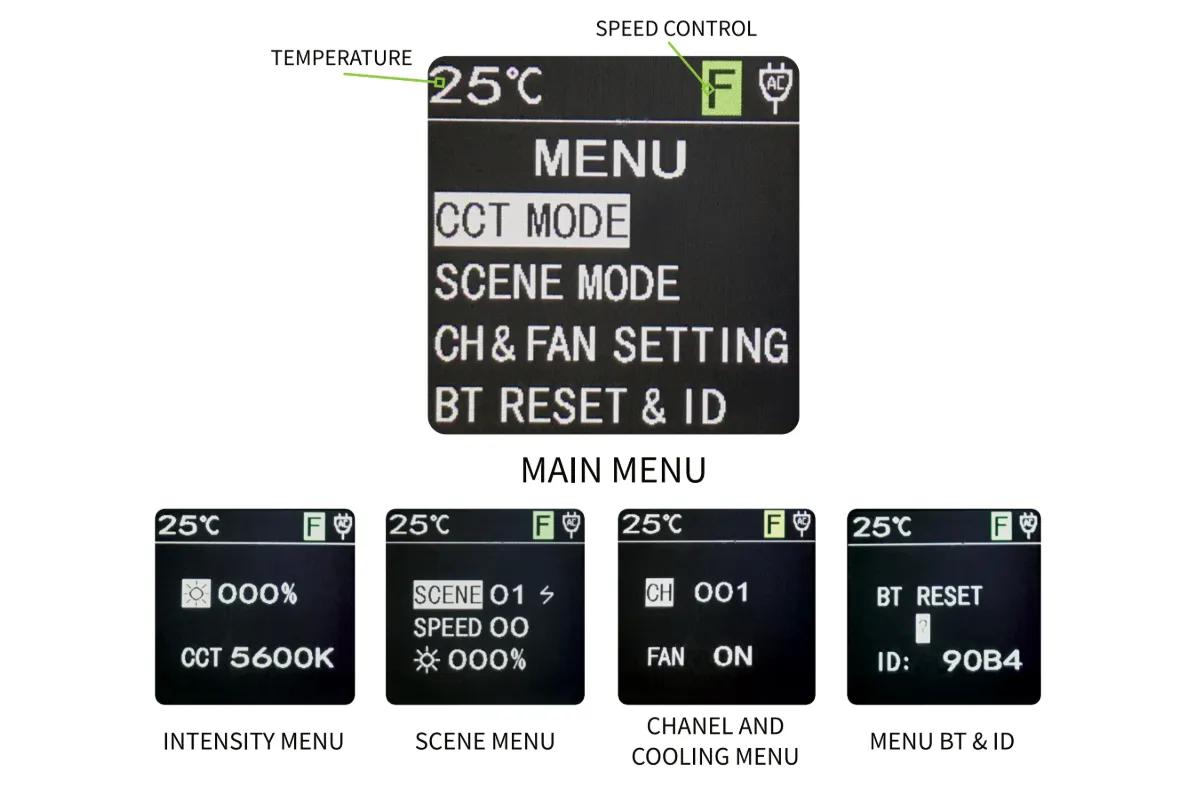
FOMEI LED DMX 300B giver lysstyring via displayet. Temperaturen er altid i øverste venstre hjørne af skærmen, mens hastighedskontrollen forbliver i øverste højre hjørne af skærmen. Fra hovedmenuen er der menupunkter for: CCT Mode (Intensitet), Scene Mode, Channel and Fan (Cooling) Indstilling og BT (Bluetooth) Reset & ID.
Hovedmenu
Efter at have tændt FOMEI LED DMX 300B, vises hovedmenuen på skærmen. Brug det røde scrollhjul til at navigere i hovedmenuen, og brug ENTER-knappen til at åbne en valgt menu.
Intensitetsmenu
I den første menu er det muligt at justere lysintensiteten på en skala fra 0-100%. For at gøre dette skal du vælge lysikonet, trykke på ENTER-knappen og bruge scrollhjulet til at justere lysintensiteten. For hurtigere og mere præcis kontrol skal du trykke rullen ned for at ændre justeringshastigheden. Rullehastighedsinformationen vises i den grønne boks i den øverste bjælke på displayet (F: med 10 point, S: med 1 point). For at vende tilbage til hovedmenuen, tryk på MENU-knappen.
Scene Mode
I menuen for Scene Mode er der tre parametre: scenetype, scenehastighed og scenelysintensitet. Lyset har ni scener: Flash 1, Flash 2, TV, Stearinlys, Paparazzi, Strobe, Lav- / Fjernlys, Dobbelt Flash og Vejrtrækning. Brug scrollhjulet til at fremhæve en parameter, og tryk ENTER for at redigere feltet. Derefter vil et nyt tryk på ENTER vende tilbage til sceneparametrene for yderligere redigering.
Kanal- og ventilator (kølemenu)
Channel & Fan-menuen ændrer DMX-kanalen og styrer lysets køling. Efter at have slukket for den aktive lyskøling anbefales det at tjekke lystemperaturen, som er synlig i øverste venstre hjørne af skærmen. Bemærk: Hvis der er risiko for overophedning, slukker lyset automatisk.
BT (Bluetooth) Nulstilling & ID
BT Reset & ID-menuen nulstiller Bluetooth-signalet og viser lysets ID. Bemærk, at en BT-signalnulstilling er nødvendig før hver ny forbindelse til mobilappen. Vælg JA, og lyset nulstiller automatisk.
Kontrol via app
Efter at have nulstillet Bluetooth-signalet på FOMEI LED DMX 300B, forbind til enheden på mobilen via Bluetooth ved hjælp af Desal Lite+-appen, som er downloadet på din telefon. I appen skal du trykke på plus ("+") symbolet i øverste højre hjørne, og trykke på "Tilføj enhed" for at søge efter lys. Når en findes, tryk plus-symbolet igen for at tilføje lyset. Det er nu muligt at bruge appen til at styre lysintensiteten, lysscenen og til at synkronisere lyset med musik.
Desal Lite+ App Download
Desal Lite+ appen til styring af FOMEI LED DMX 300B er tilgængelig til download på iOS og Android. Søg i Apple Store App Store efter "DESAL Light +" for at downloade på iOS, eller brug QR-koden nedenfor for hurtig adgang til downloads af iOS- eller Android-versioner af appen.

4. Teknisk information
De tekniske specifikationer for FOMEI LED DMX 300B studielampen vises i følgende tabel.
FOMEI-virksomhedsinformation og kontakt
Firmaet FOMEI s.r.o. er registreret på adressen: Machkova 587, Hradec Kralove 500 11, Tjekkiet.
Send en e-mail til sls@fomei.com for generelle forespørgsler eller for at servis@fomei.com for serviceanmodninger.
Telefon: +420 495 056 505
Afsluttende noter
Dette er en gengivelse af den officielle FOMEI LED DMX 300B brugermanual, som også er tilgængelig i en downloadbar PDF-version på fomei.com. For serviceinformation, henvis til dokumentationen, der specifikt følger med din enhed, eller til FOMEI-serviceafdelingen for øjeblikkelig support.


EOS Rebel-serien


EOS DSLR-serien


EOS M-serien af spejlløse kameraer


PowerShot-serien


Close-Up / Håndholdt

Canon EOS Rebel-serien tilbyder begyndervenlige DSLR-kameraer med solid billedkvalitet, intuitive kontroller og alsidige funktioner. Disse kameraer er ideelle til fotoentusiaster og giver pålidelig autofokus, berøringsskærme, der kan vippes og drejes, og Full HD- eller 4K-videooptagelse.
Forbindelse
Opløsning (MP)
Opløsning
Canon EOS DSLR-serien leverer billeder i høj kvalitet, hurtig autofokus og alsidighed, hvilket gør den ideel til både fotografering og videoproduktion.
Forbindelse
Opløsning (MP)
Opløsning
Canon EOS M-serien af spejlløse kameraer kombinerer kompakt design med DSLR-lignende ydeevne. Med udskiftelige objektiver, hurtig autofokus og billedsensorer af høj kvalitet er disse kameraer gode til rejsende og indholdsskabere, der søger bærbarhed uden at gå på kompromis med billedkvaliteten.
Forbindelse
Opløsning (MP)
Opløsning
Canon PowerShot-serien tilbyder kompakte, brugervenlige kameraer til afslappede fotografer og entusiaster. Med modeller, der spænder fra simple peg-og-skyd til avancerede zoomkameraer, giver de bekvemmelighed, solid billedkvalitet og funktioner som billedstabilisering og 4K-video.
Forbindelse
Opløsning (MP)
Opløsning
Canons nærbilleder og håndholdte kameraer er designet til detaljeret fotografering og video tæt på. De er kompakte og nemme at bruge og tilbyder præcisionsfokus, billedbehandling i høj opløsning og alsidige makrofunktioner – perfekt til vlogging, produktfotografering og kreative nærbilleder.


